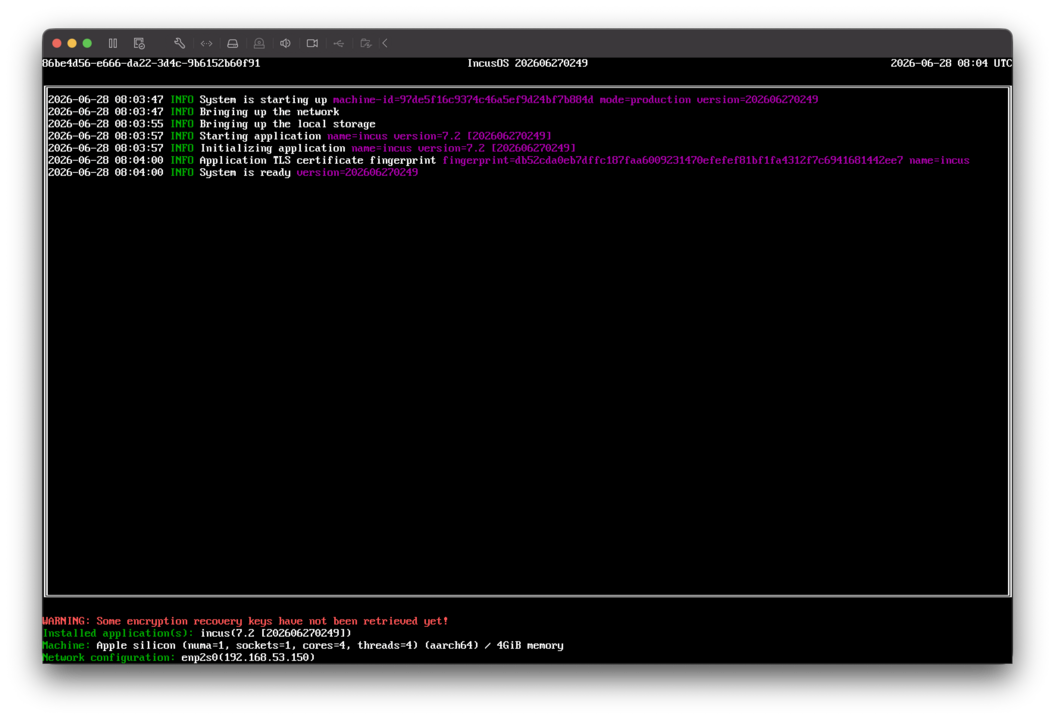
Installing in a VMware Fusion virtual machine
IncusOS can be installed in a VMware Fusion virtual machine on MacOS.
Note
IncusOS requires the use of a TPM device and enabling Secure Boot.
In addition, the virtual machine needs to configured with custom Secure Boot keys before the initial start. Otherwise, clearing NVRAM or a recreation would be required.
Get and import install media
Follow the instructions to get an IncusOS image. This document will assume an ISO image is used.
Configure networking
Because IncusOS needs runs nested containers and virtual machines, the VMware network security policy must be pretty relaxed to allow for the virtual machine to run its internal bridge.
Run the following command to enable Promiscuous Mode.
sudo touch "/Library/Preferences/VMware Fusion/promiscAuthorized"
Create a new virtual machine
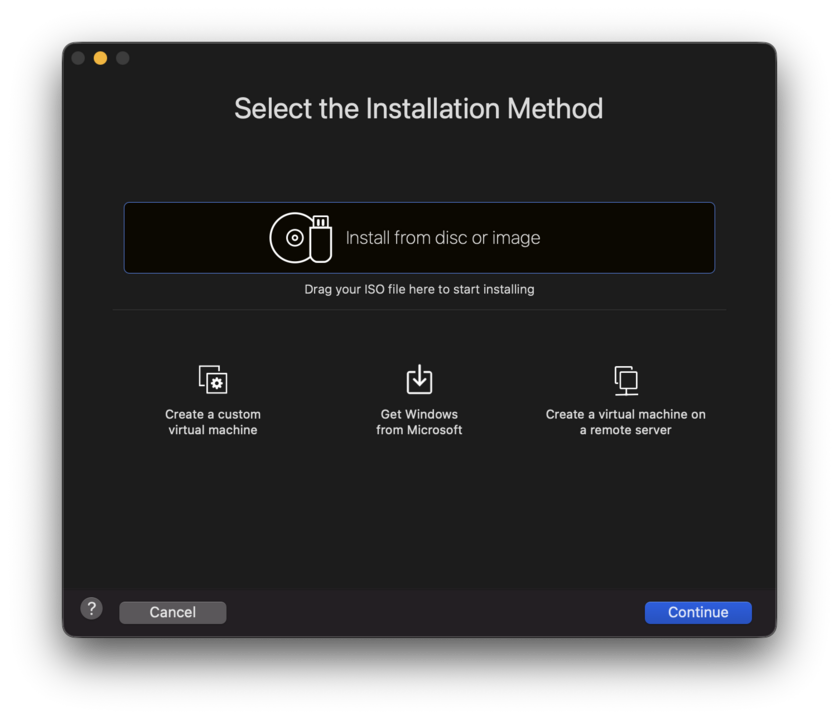
Select an ISO file or drag the ISO file into the VMware Fusion dialog.
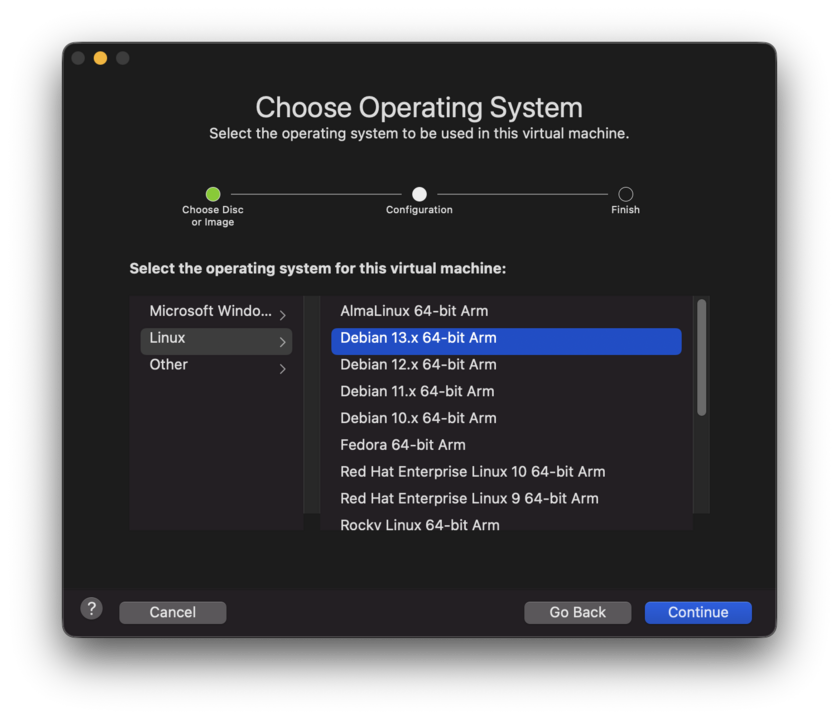
Then select Linux and Debian 13.x 64-bit Arm as the operating system.
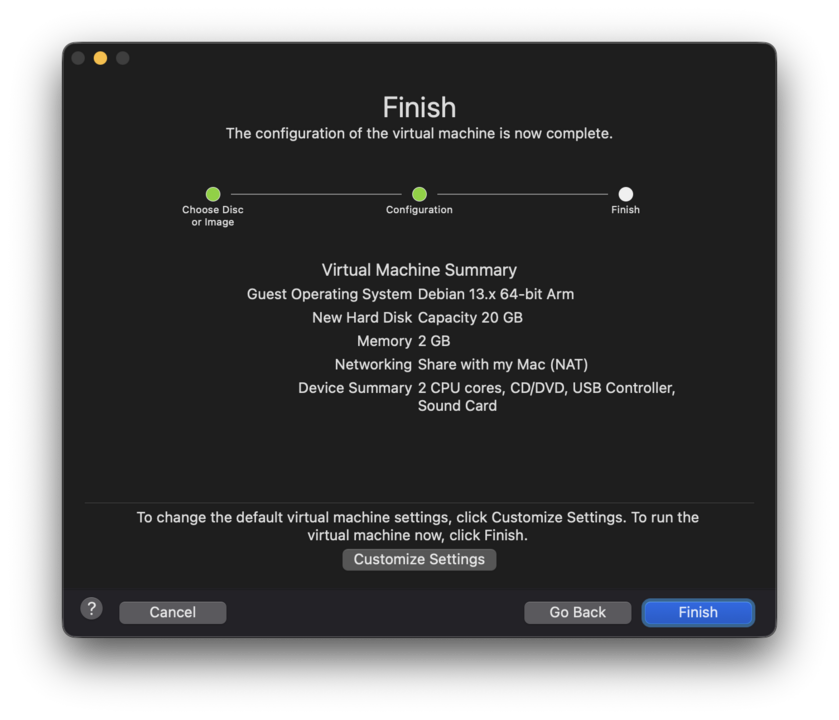
You will be shown the virtual machine details, click on Customize Settings to
customize the virtual machine.
Note
Do not click on Finish yet, the virtual machine would be started and
would be in a bad Secure Boot state.
Set the name of the virtual machine and save.
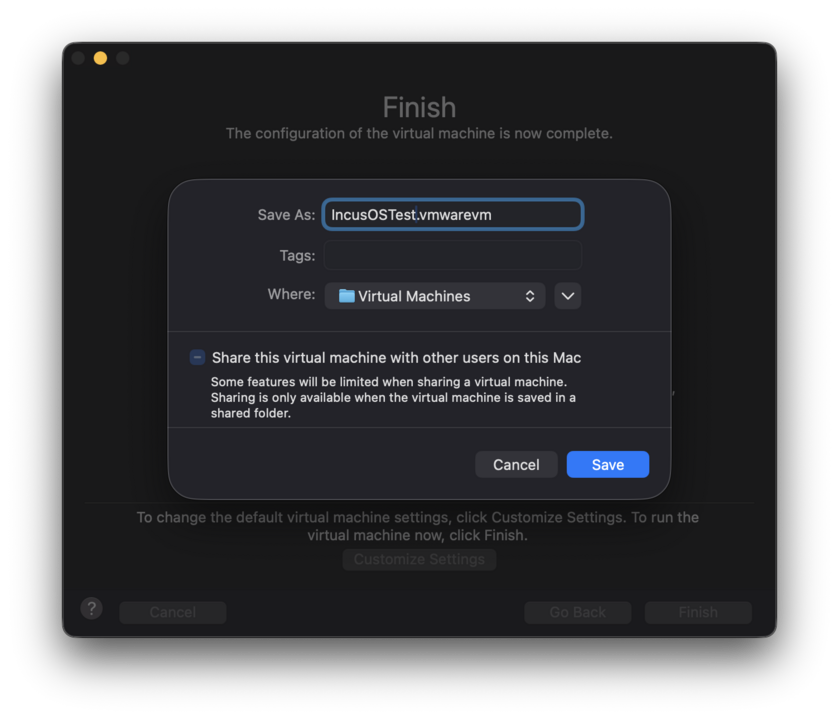
You will be presented with the virtual machine settings dialog.
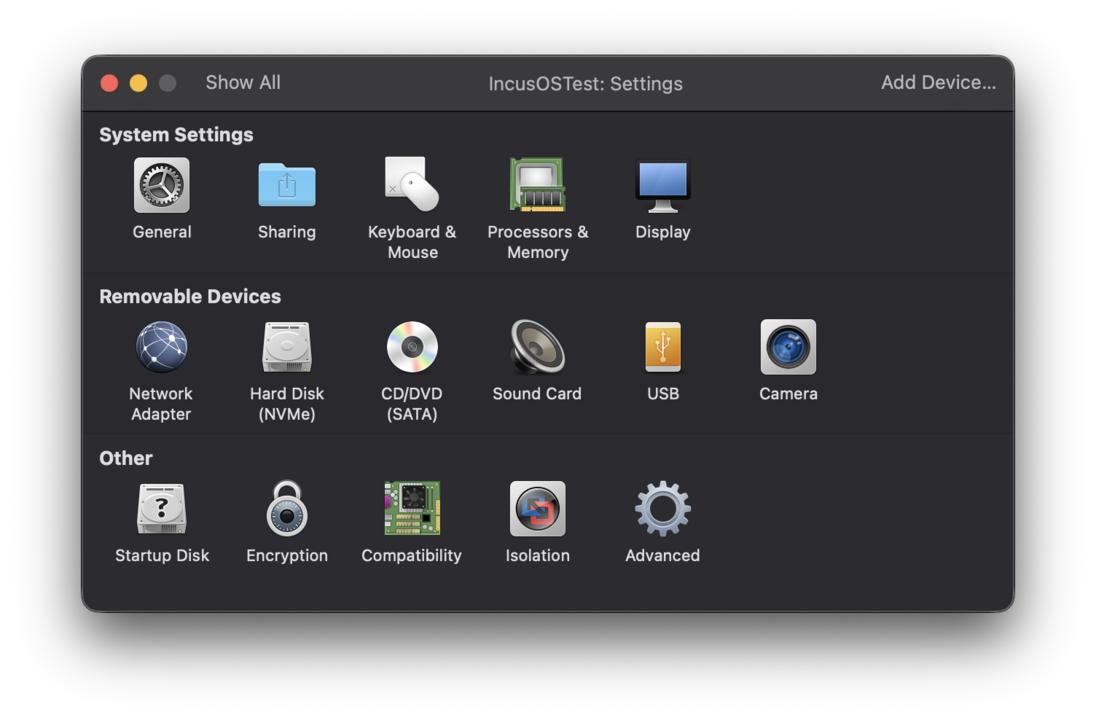
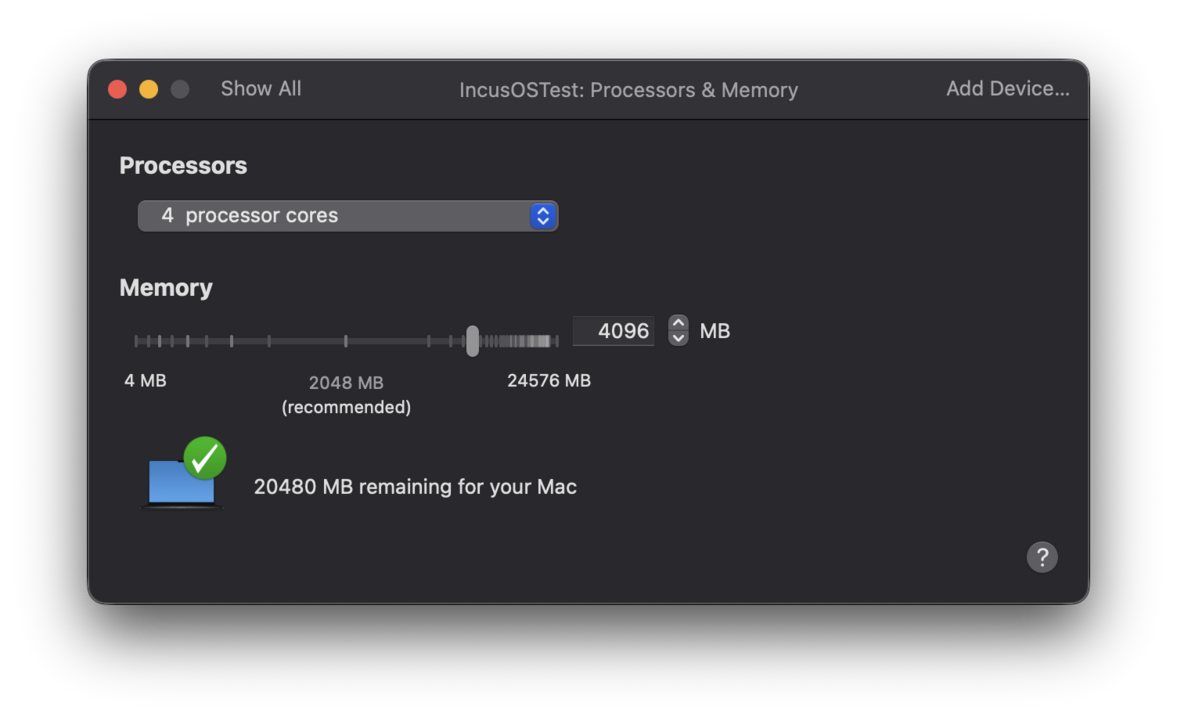
Customize the virtual machine hardware and set at least 4 CPUs and 4GiB of RAM
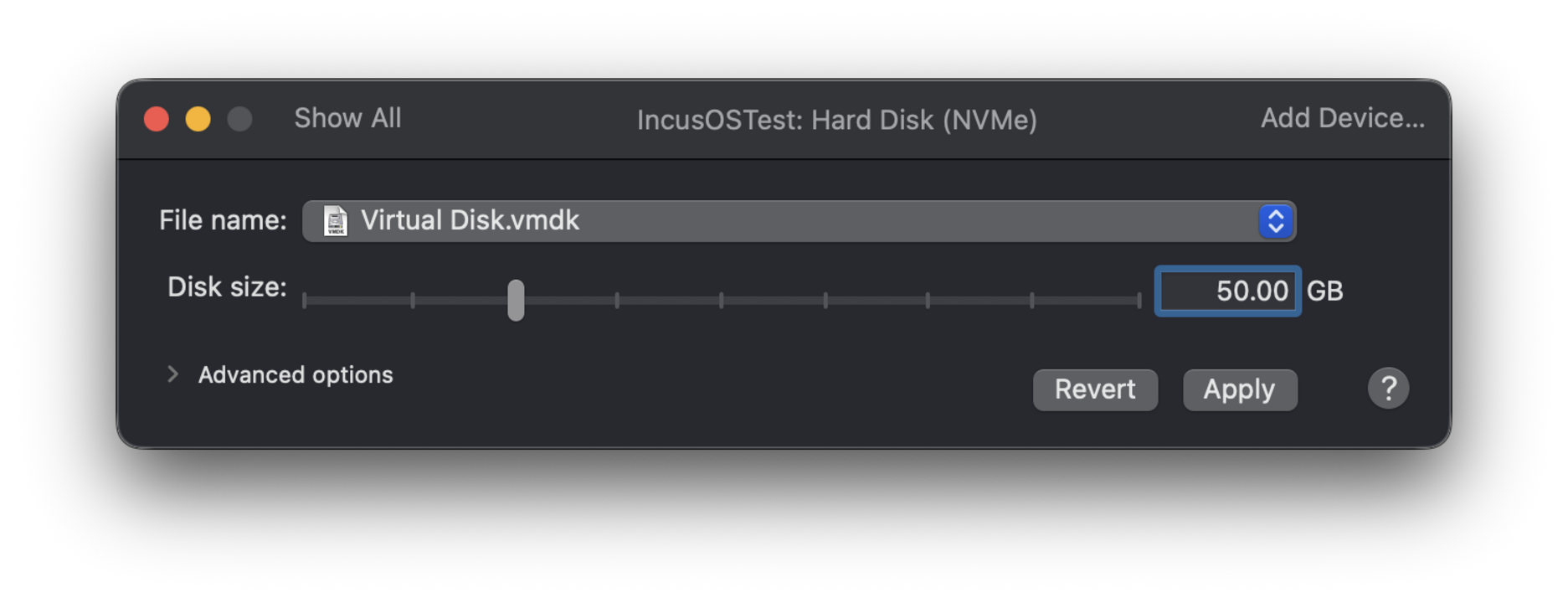
Customize the disk size and set it to at least 50GiB size.
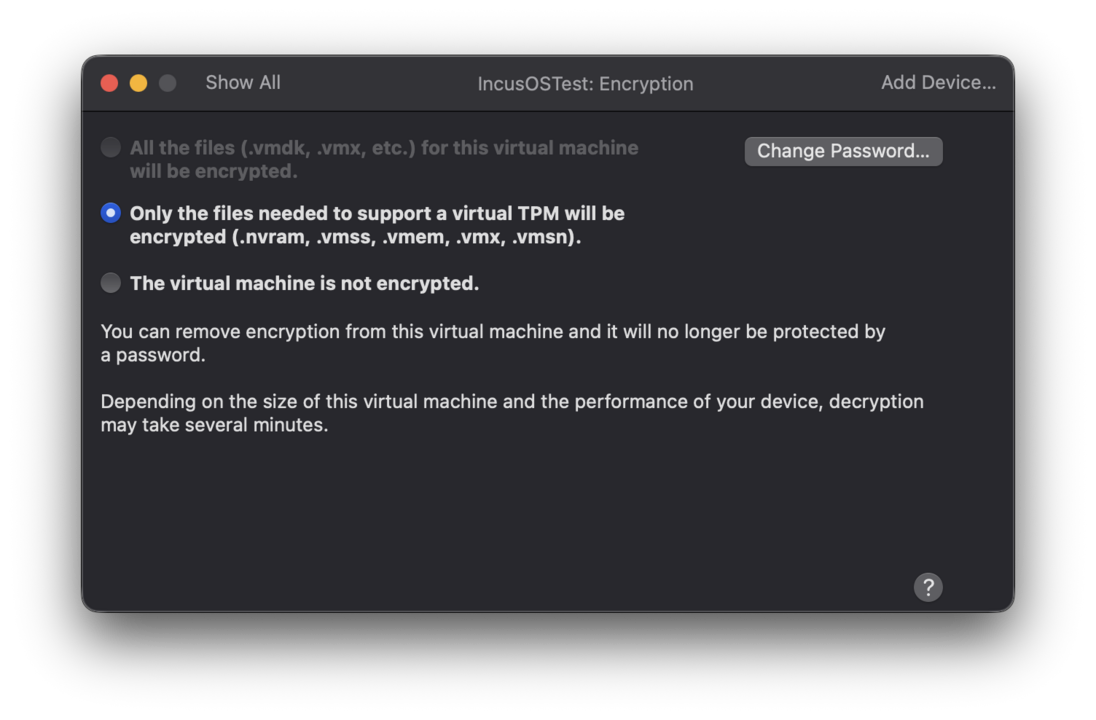
Select encryption and choose the option to encrypt only the required files.
Note
You can also choose the option to encrypt all files. However, encrypting only the required files suffices.
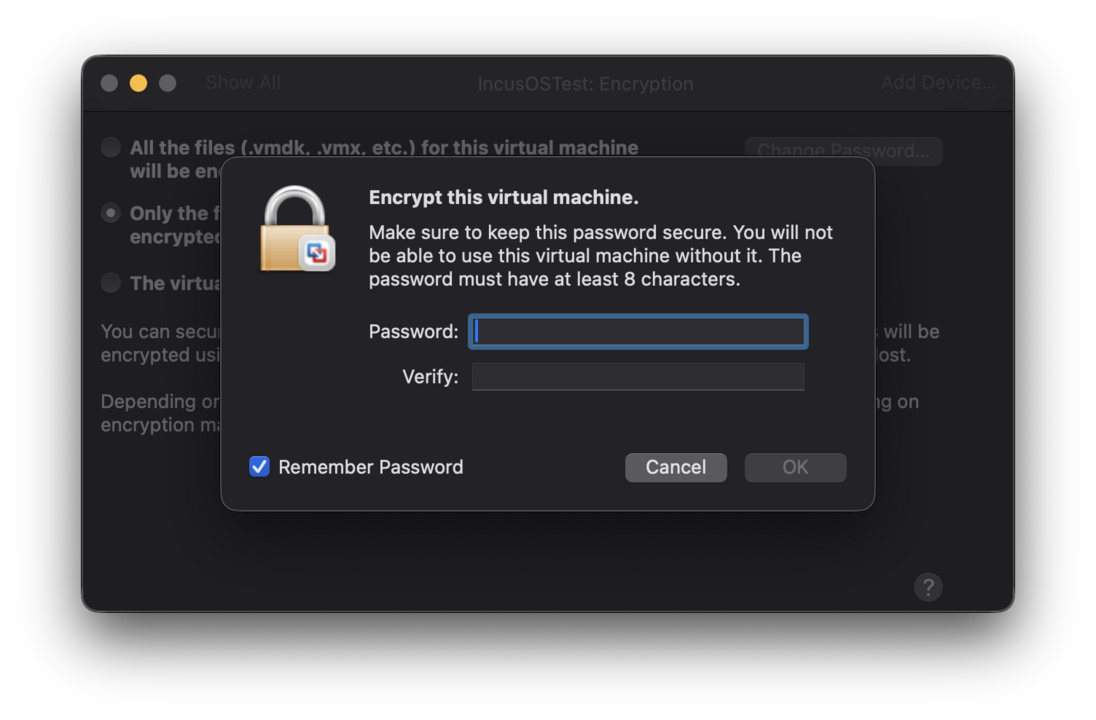
You will be prompted to set a password, proceed to set it.
Note
For convenience, to avoid future password prompts when starting the virtual machine,
you can check Remember Password.
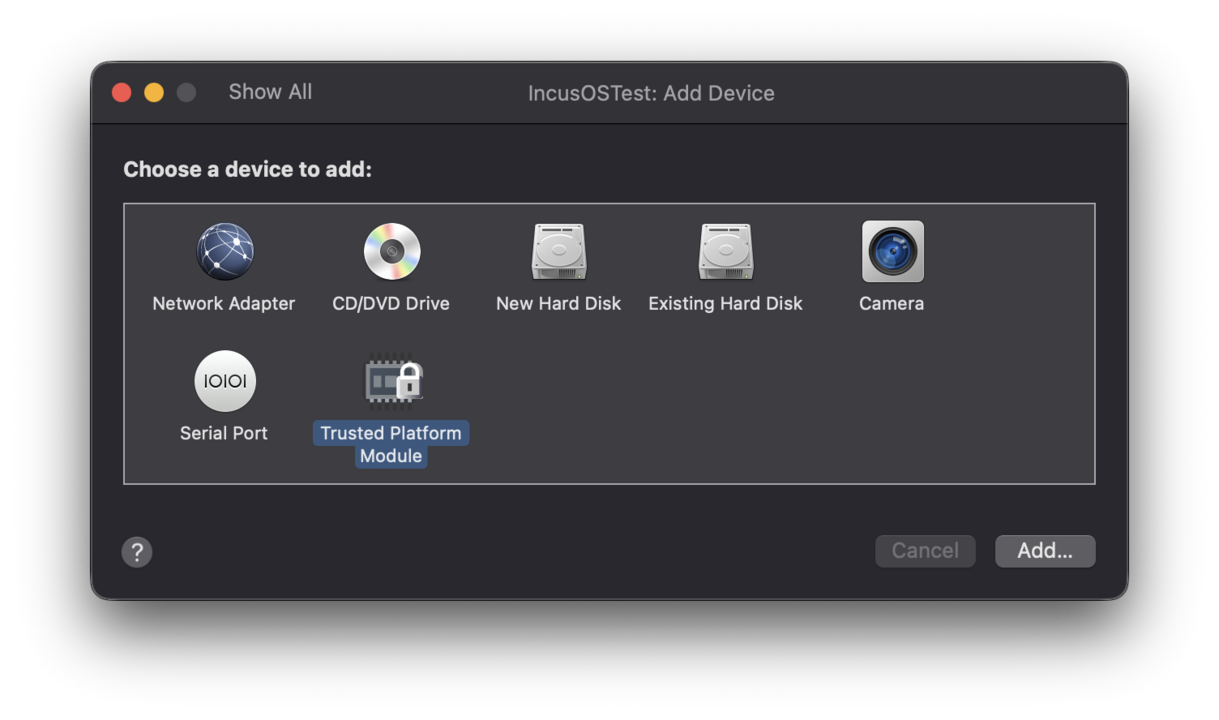
After encryption is enabled, click on Add Device on the Settings dialog and add a new TPM device.
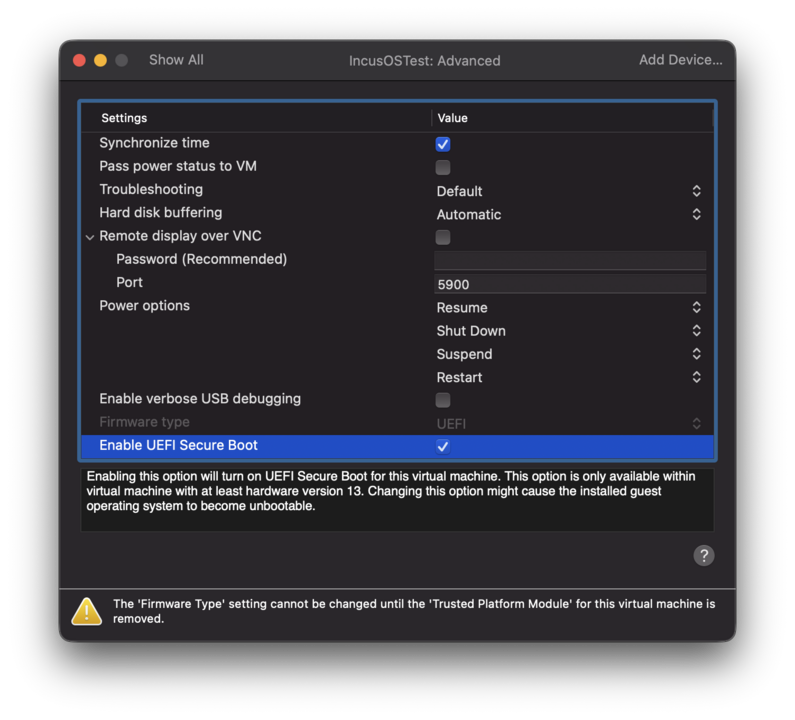
Select Advanced settings in the Other section of the Settings dialog and check the
Enable UEFI Secure Boot checkbox.
Then close the settings dialog, the virtual machine creation is complete.
Note
Do not start the virtual machine at this point or it will create a bad Secure Boot state.
Download the Secure Boot keys
Go to https://images.linuxcontainers.org/os/keys/ and download:
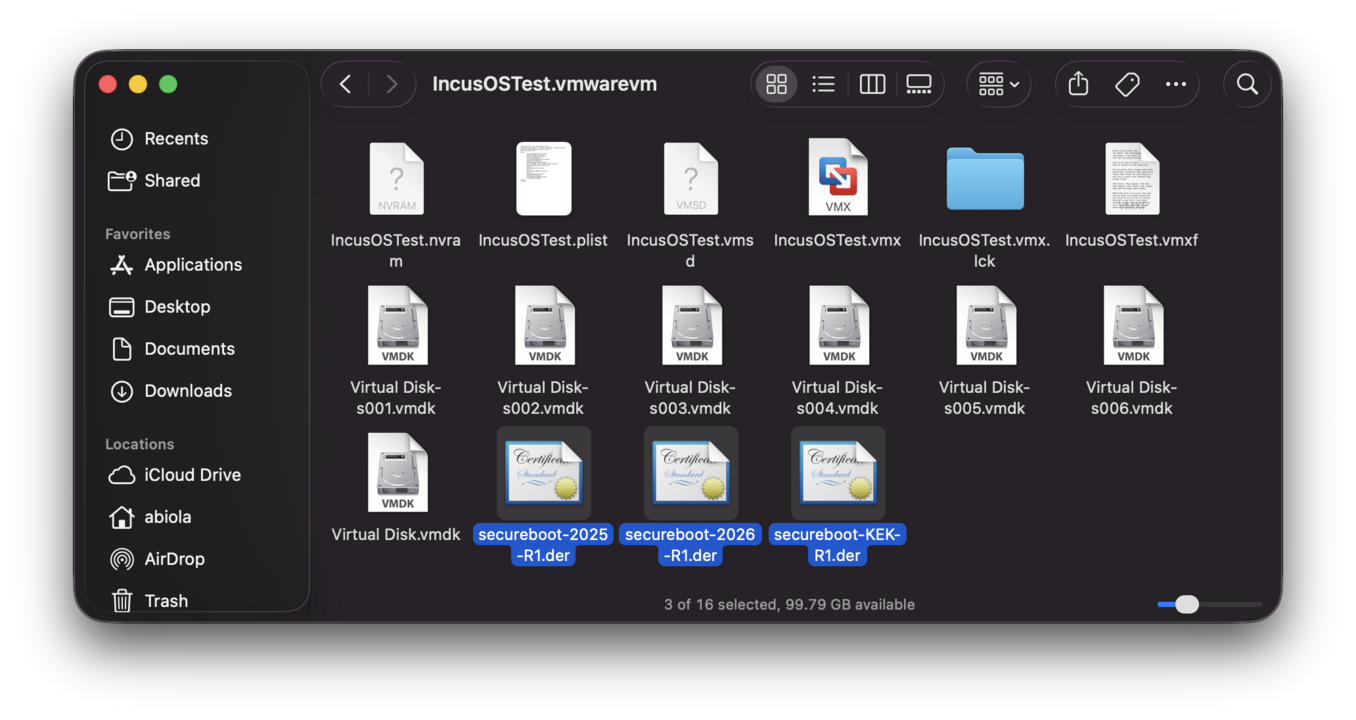
secureboot-KEK-R1.dersecureboot-DB-2025-R1.dersecureboot-DB-2026-R1.der
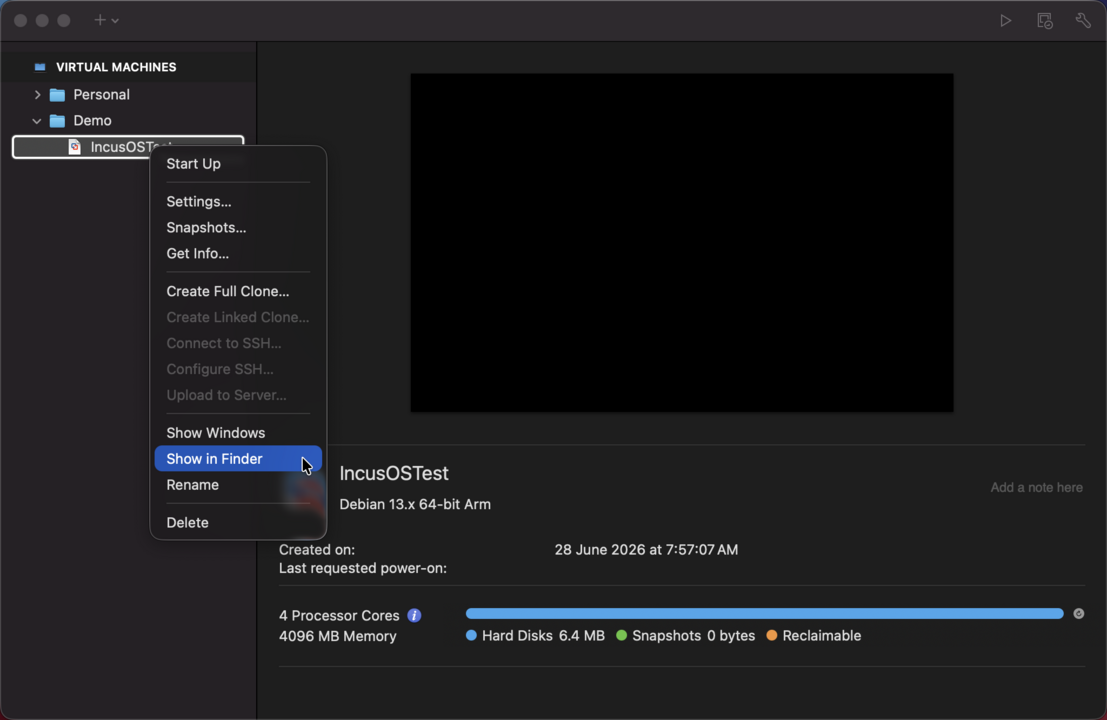
Then open Virtual Machine Library, right-click on the virtual machine and click Show in Finder.
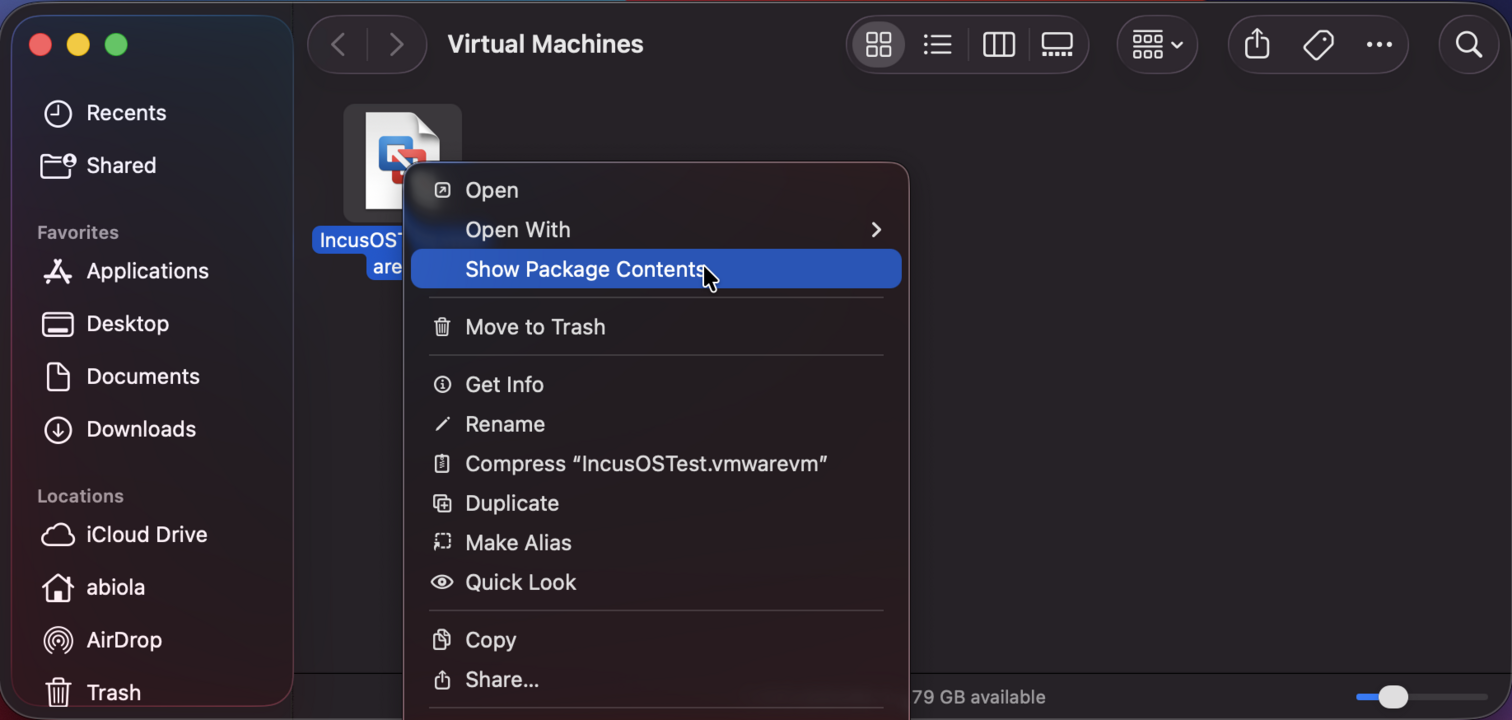
Then select the virtual machine’s .vmwarevm file, right-click it and choose Show Package Contents.
Copy the three secure boot key files into the directory.
Open Virtual Machine Library, right-click on the virtual machine and hold down the option key,
then click Open Config File in Editor.
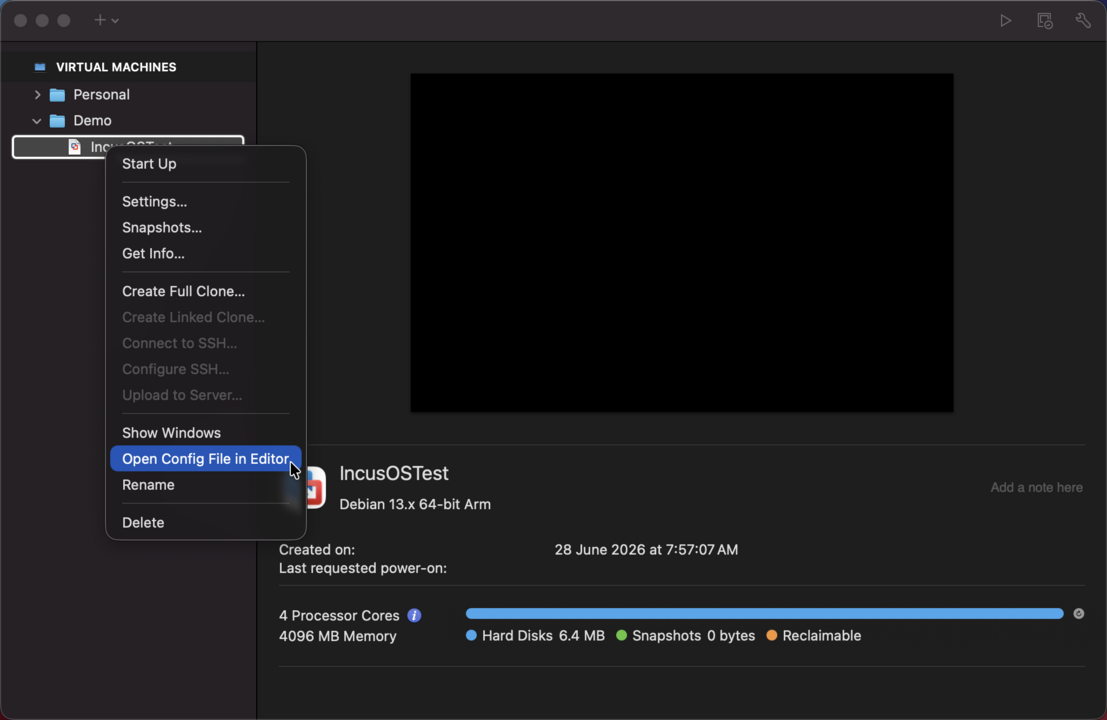
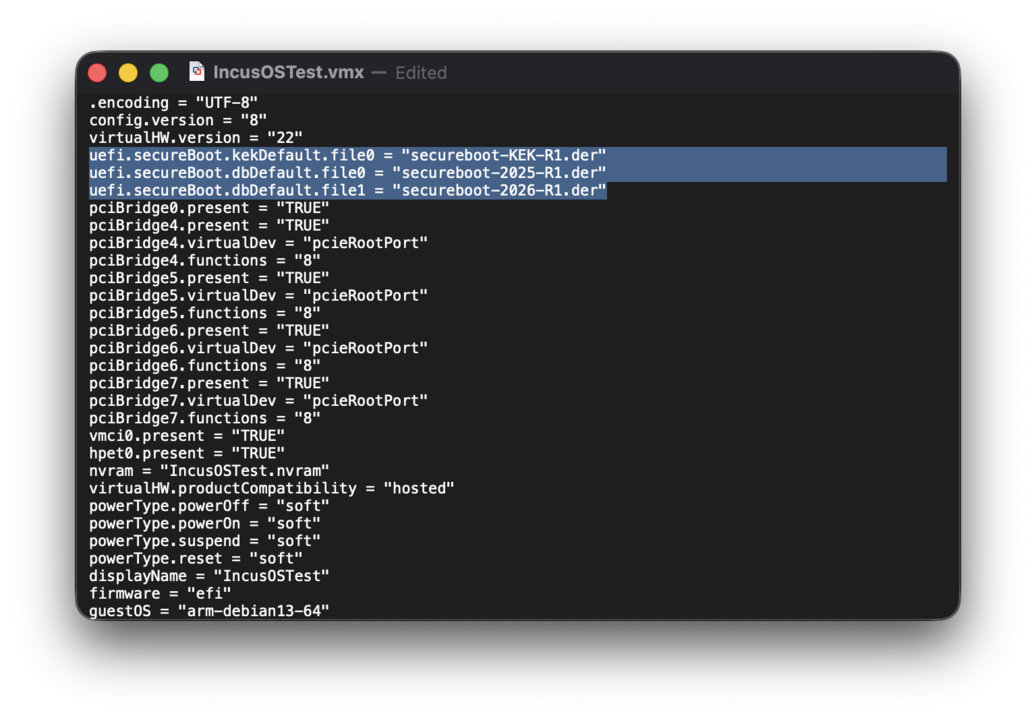
Paste these lines into the configuration file.
uefi.secureBoot.kekDefault.file0 = "secureboot-KEK-R1.der"
uefi.secureBoot.dbDefault.file0 = "secureboot-2025-R1.der"
uefi.secureBoot.dbDefault.file1 = "secureboot-2026-R1.der"
IncusOS installation
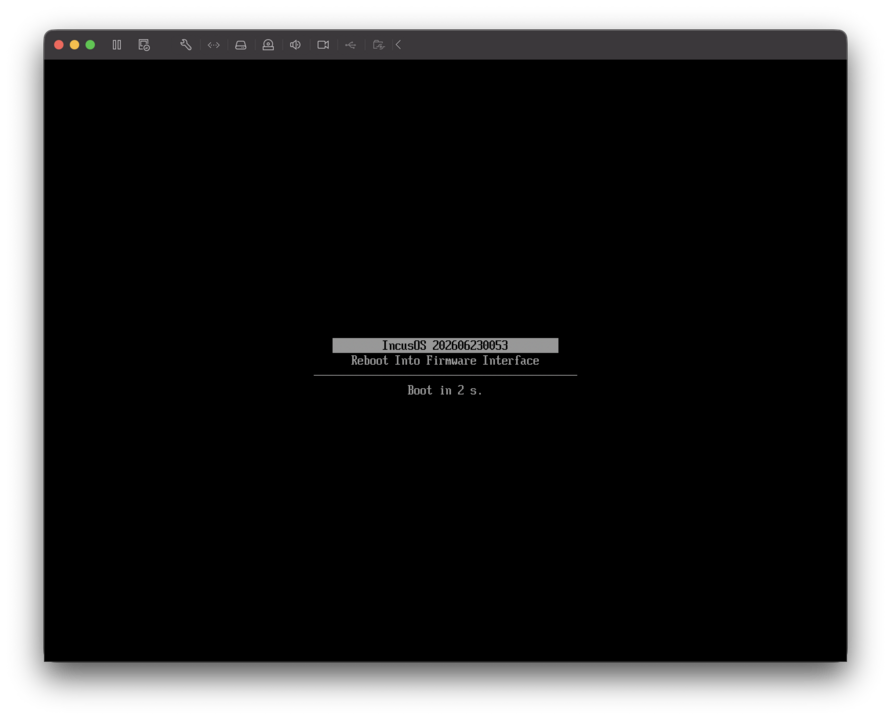
Start the virtual machine, and IncusOS will begin its installation.
Note
VMware Fusion takes some time to hash the kernel image during boot. This leads to a black screen lasting around 1-3 minutes following the boot loader message.
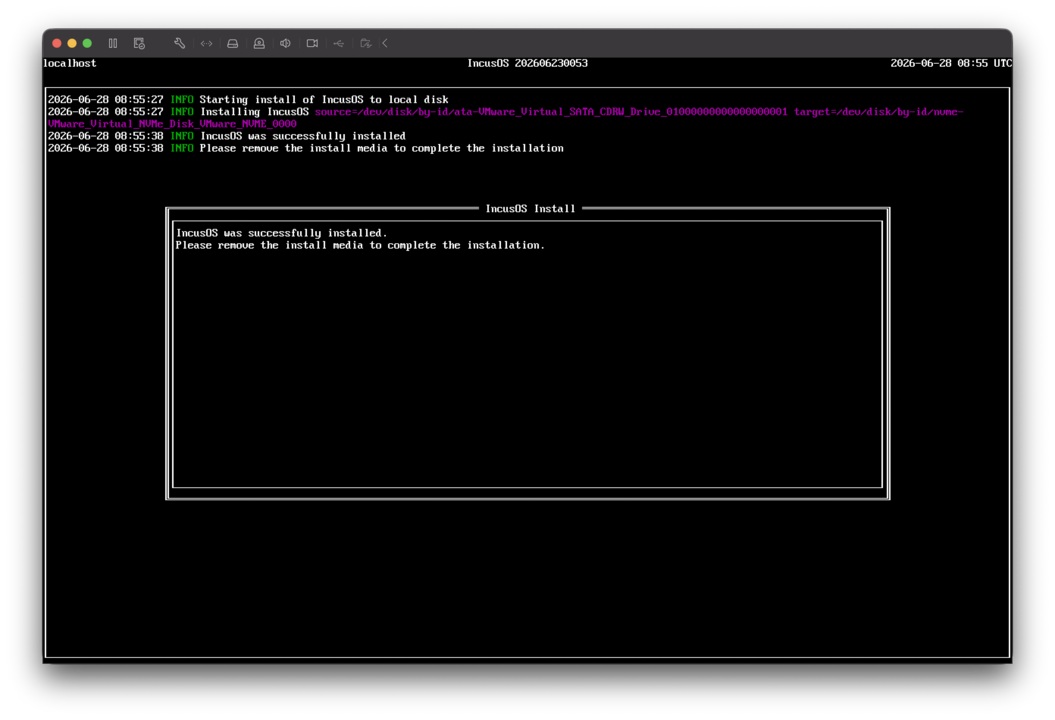
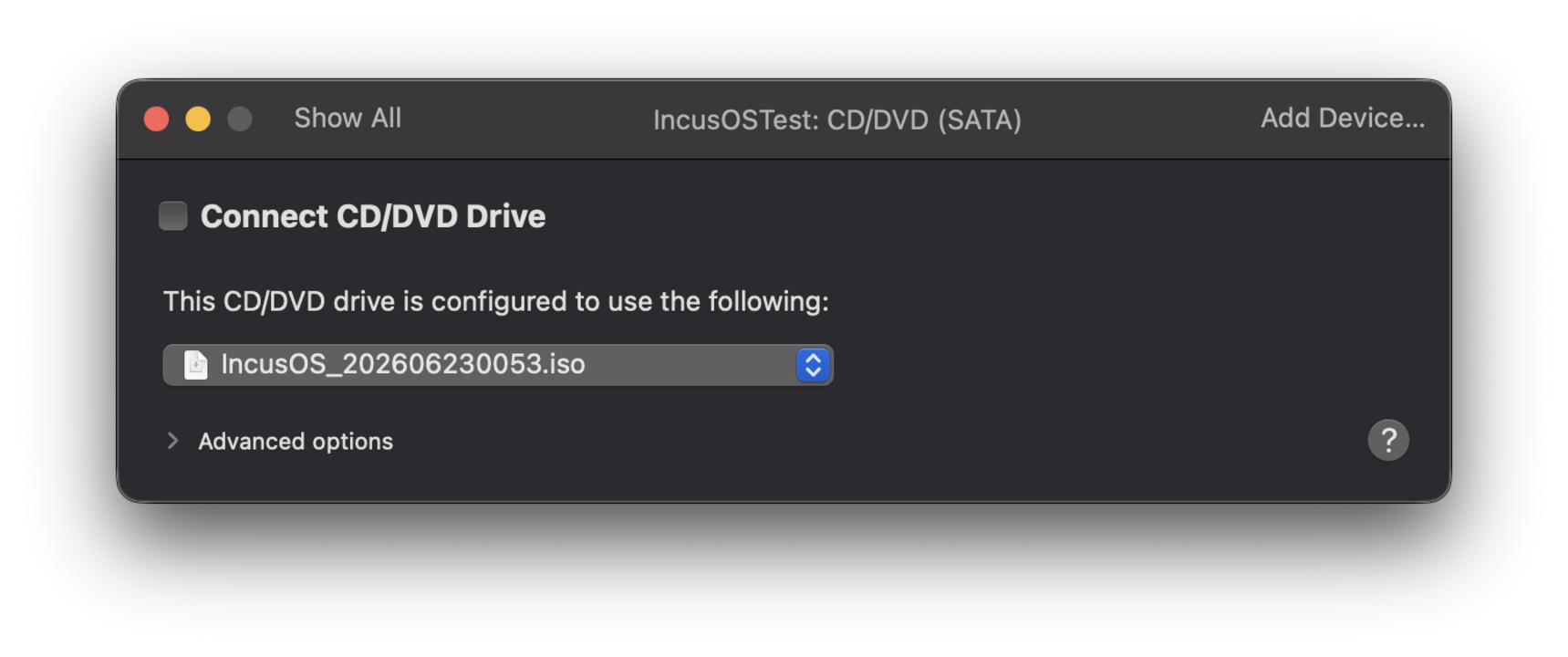
Once installed, stop the virtual machine and edit its settings to disconnect the CD/DVD drive.
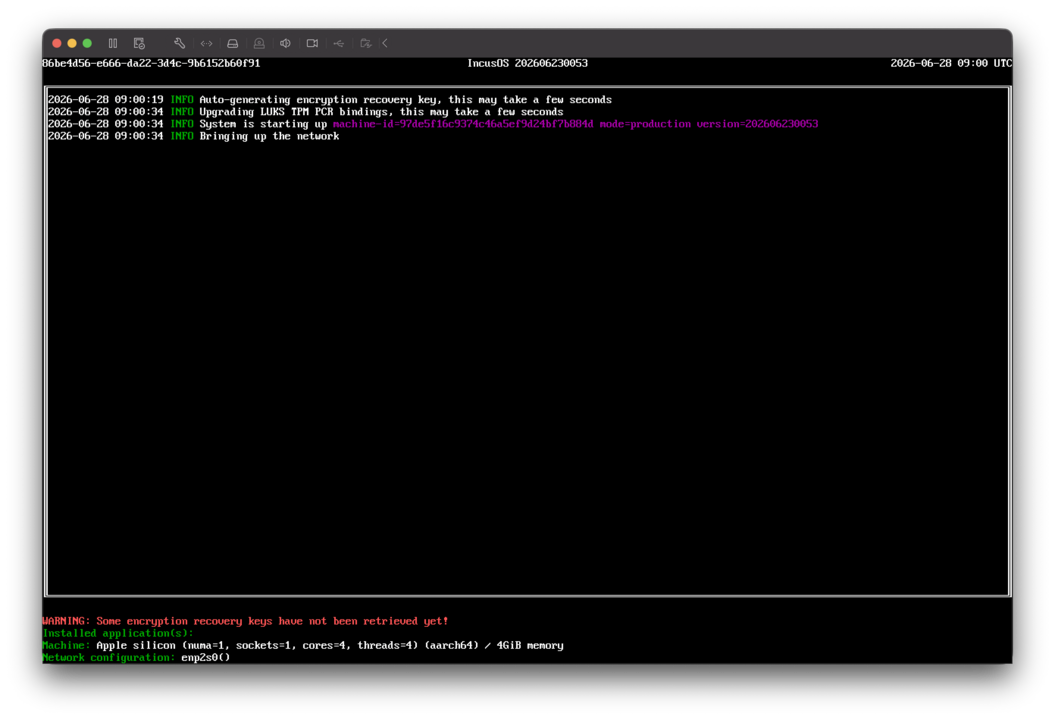
Start again and IncusOS will perform its first boot configuration and should startup successfully.
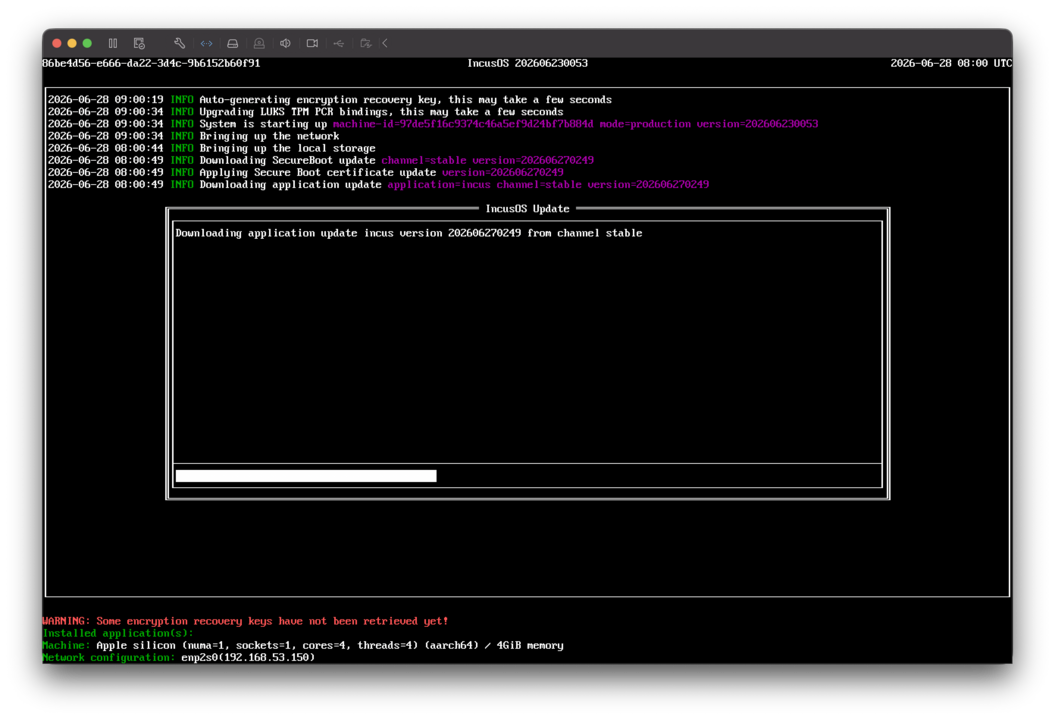
IncusOS will also install any pending updates.
IncusOS is ready for use
The virtual machine should reboot and IncusOS would be ready for use.
Follow the instructions for accessing the system.